
Account
Sagar Club Login – sign in step by step
Mobile number, password, play. Plus fixes for when the login screen won’t cooperate.
Updated 20 October 2026
In this article 10
The Sagar Club login takes two details: the mobile number on your account and your password. Here’s each screen, what usually goes wrong, and how to keep the account to yourself.
Logging in
- Open the Sagar Club app, or tap Sagar Club Login on this site.
- Type your 10-digit mobile number — leave out +91 and any leading 0.
- Enter your password. The eye icon shows what you’ve typed; use it once if you’re not sure.
- Tap Log in. The lobby opens with your coin balance at the top.
When it doesn’t work
“Account not found”
The number is different from the one you signed up with. If you have two SIMs, try the other.
“Incorrect password”
Autofill may be entering an old password. Type it yourself, or reset it on forgot password.
Login keeps loading
Close the app fully and reopen it. On a browser, clear the cache for the site.
Signed out repeatedly
The account is open on another device. Sign out there.
A longer list, including what to send support, is on login problems.
Staying signed in
The app remembers you after the first login, so day-to-day you just open it and play. If you share a phone with family, sign out from Account → Log out when you’re done.
Keep the login private
- Use a password you don’t use anywhere else.
- Don’t share the OTP we send — not with friends, not with anyone claiming to be support.
- If you get an OTP you didn’t ask for, change your password.
What you see after logging in
| Area | Where |
|---|---|
| Coin balance | Top of the screen |
| Category tabs | Lobby, Colour, K3, 5D, Mini, Cards, Slots, Events |
| Banner | Current events and news |
| Account | Profile, security, support |
App or browser?
| Where | Our advice |
|---|---|
| Sagar Club app | Stays signed in; quickest to open |
| Phone browser | Works fine for occasional play |
| Someone else’s phone | Log out when you’re done |
First login on a new phone
Logging in on a new phone works exactly the same — number and password. If you’ve forgotten the password, the reset code goes to your registered SIM, so make sure that SIM is in the phone or nearby.
Back to the Sagar Club home page for games, the app and news.
Log in to Sagar Club
Create your free Sagar Club account and start playing in minutes. 18+ only.
The Sagar Club login screen, explained
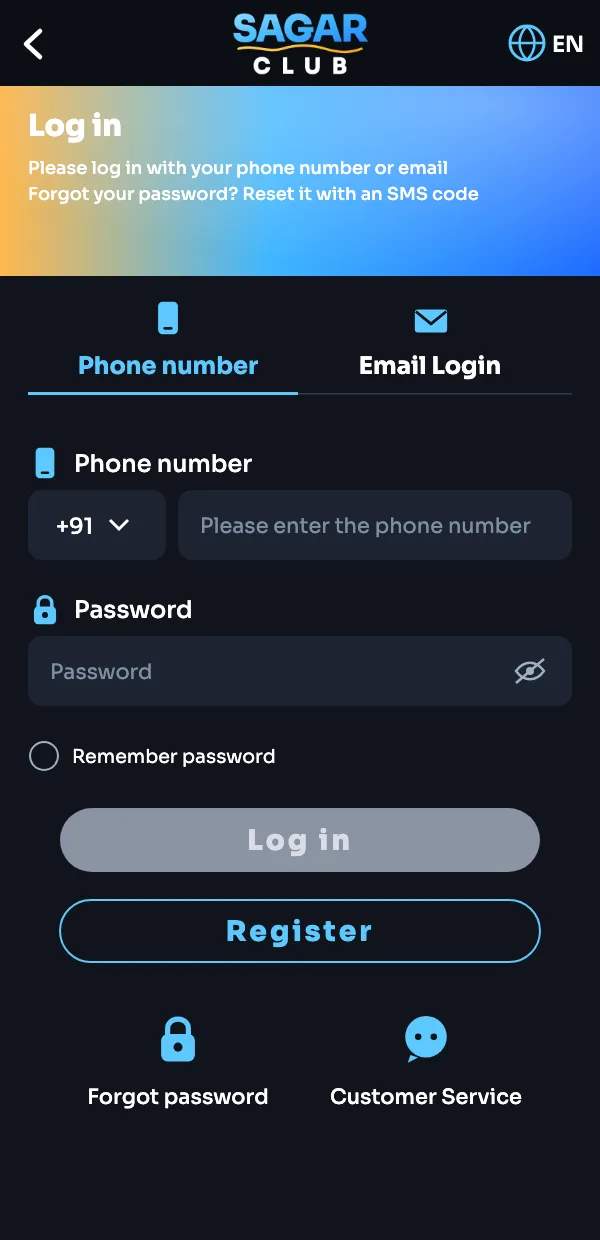
| On screen | What it does |
|---|---|
| Phone number / Email Login | Two tabs — use the one you registered with |
| +91 | Country code for Indian numbers |
| Password | Tap the eye to show / hide it |
| Remember password | Only tick on your own phone |
| Log in | Turns active once both fields are filled |
| Register | Opens sign-up if you are new |
| Forgot password | Reset with an SMS code |
| Customer Service | Live chat if nothing works |
Frequently asked questions
What do I need to log in?
The mobile number you registered with and your password.
Can I log in with email?
No. Sagar Club accounts are linked to a mobile number.
Do I need an OTP every time?
No. The OTP is used when you create an account and when you reset your password.
Can I use one account on two phones?
You can sign in on another phone, but the newest sign-in may end the older session. Use phones you own.
More on Sagar Club
Was this page helpful?